The quick version
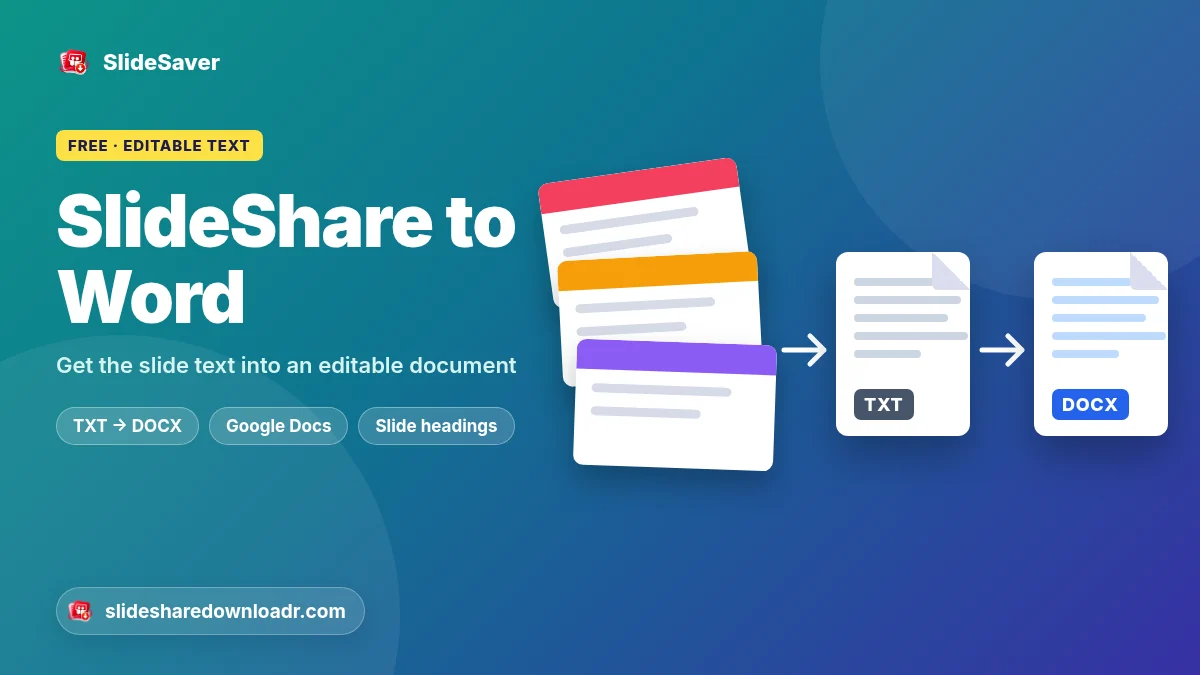
Paste the deck link into our free SlideShare Text Extractor and press Download text. Open the .txt file in Microsoft Word (or upload it to Google Docs) and save it as .docx. Every slide starts with a --- Slide N --- line, so you can turn those lines into headings and edit the rest like any document. If a slide has no text, use OCR (method 3).
What 'SlideShare to Word' really means
SlideShare shows slides as images. When you download a deck as PDF or PPTX, each page or slide is a picture, so opening that PDF in Word just gives you pictures. What you usually want is the text, ready to edit, quote or translate. SlideShare already extracts text from most uploaded decks, and that is what our extractor saves.
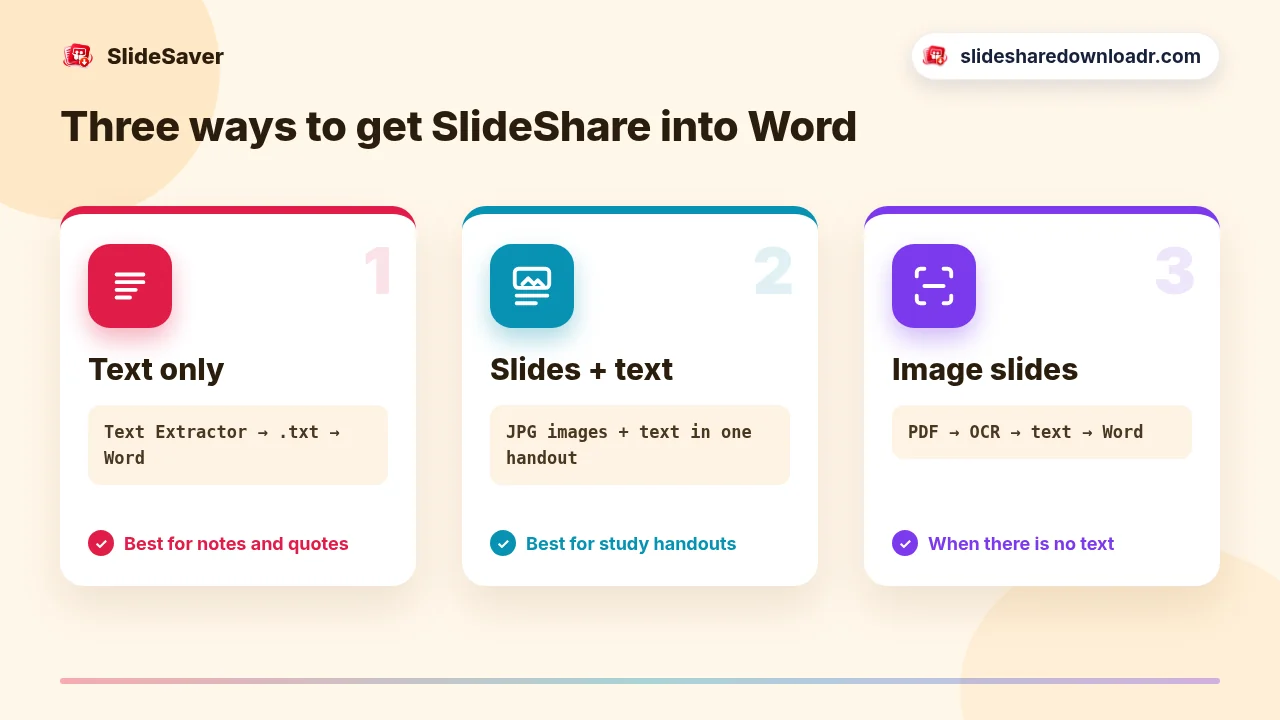
Choose by what you need:
- Editable notes or a summary: method 1, text only.
- A handout with slide pictures and text side by side: method 2.
- Slides made of images or scans: method 3, OCR.
Method 1: extract the text and open it in Word
- Copy the link of a public SlideShare presentation.
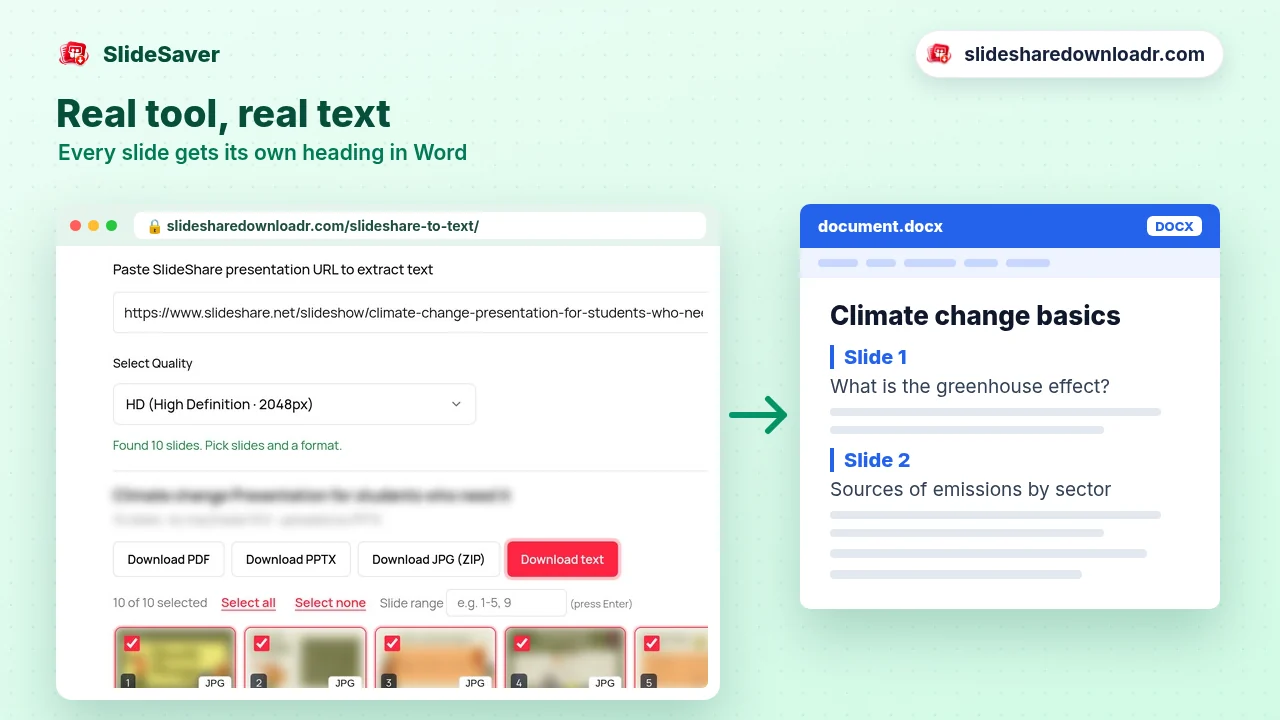
- Paste it into the SlideShare Text Extractor and press Download. A preview of every slide appears.
- Pick slides if you only need some of them, then press Download text. If that button is missing, SlideShare has no text for this deck; go to method 3.
- Open the .txt in Word: File → Open, set the file type to All files or Text files, pick the file and accept the suggested encoding (UTF-8 keeps accents and non-Latin scripts).
- Save as .docx: File → Save As → Word Document.
Google Docs instead? Upload the .txt to Google Drive, open it with Google Docs, then use File → Download → Microsoft Word (.docx). Pasting the text into a new document works too.
Make the document easy to read
- Turn slide markers into headings. In Word, open Find → Advanced Find, search for
--- Slide, choose Find In → Main Document to select every match, then click Heading 2. The Navigation pane now lists every slide. - Fix line breaks. Slide text is often short lines. Join the ones that belong together, and turn bullet-like lines into a real list.
- Keep the source. The first lines of the file are the deck title and URL. Leave them at the top so you can credit the author later.
- Check numbers and names against the slide preview. Extracted text is reliable, but slides with unusual layouts may come out in a surprising order.
Method 2: a handout with slides and text
For study notes or a printed handout, put each slide picture above its text:
- Download the slides as images with SlideShare to JPG (you get a ZIP with one picture per slide) and the text as in method 1.
- In Word, place the cursor under a Slide N heading and use Insert → Pictures to add the matching image. Set the width to the page margins.
- Write your own notes under each slide. That turns a deck you read into material you actually learn from.
Not sure which download format fits? See PDF vs PPTX: which format to choose.
Method 3: slides with no text (OCR)
Some decks are scans or exported as images, so SlideShare has no text for them. Save the deck with SlideShare to PDF, open our free OCR PDF tool, pick the language of the slides and press Start OCR. Then copy the recognised text or download it as .txt and open it in Word as in method 1. OCR runs on your device and works best on clear, printed text; check the result before you rely on it.
Want the text for an AI tool rather than Word? PDF to Markdown keeps headings and lists in a format chatbots read well.
Use the text fairly
Extracted text is still the author's work. Use it for your own study, notes, quotes and translation, and ask the author before you republish or sell it. When you quote, cite the deck: our guide on how to cite a SlideShare presentation has APA, MLA and Chicago examples. Need the whole deck instead of the words? Our free SlideShare PPT downloader saves public presentations as PDF, PPTX or images.
SlideSaver only reads presentations that anyone can view on SlideShare without signing in. It cannot open private or paid content, and it is independent and not affiliated with SlideShare, Scribd or LinkedIn.
FAQ
Can I convert SlideShare directly to a .docx file?
There is no direct .docx download. Extract the text as .txt, open it in Word or Google Docs and save it as .docx. It takes about a minute.
Why is the Download text button missing?
SlideShare has no extracted text for that deck, usually because the slides are images. Save it as PDF and use OCR PDF instead.
Will the fonts, colors and layout be kept?
No. You get the words only, with a header for each slide. For the look of the slides, add the slide images as in method 2.
Does it work on a phone?
Yes. The extractor runs in the mobile browser, and you can open the .txt file in the Word or Google Docs app.
Is it free?
Yes. There is no account, no watermark and no limit on the number of decks.