The quick version
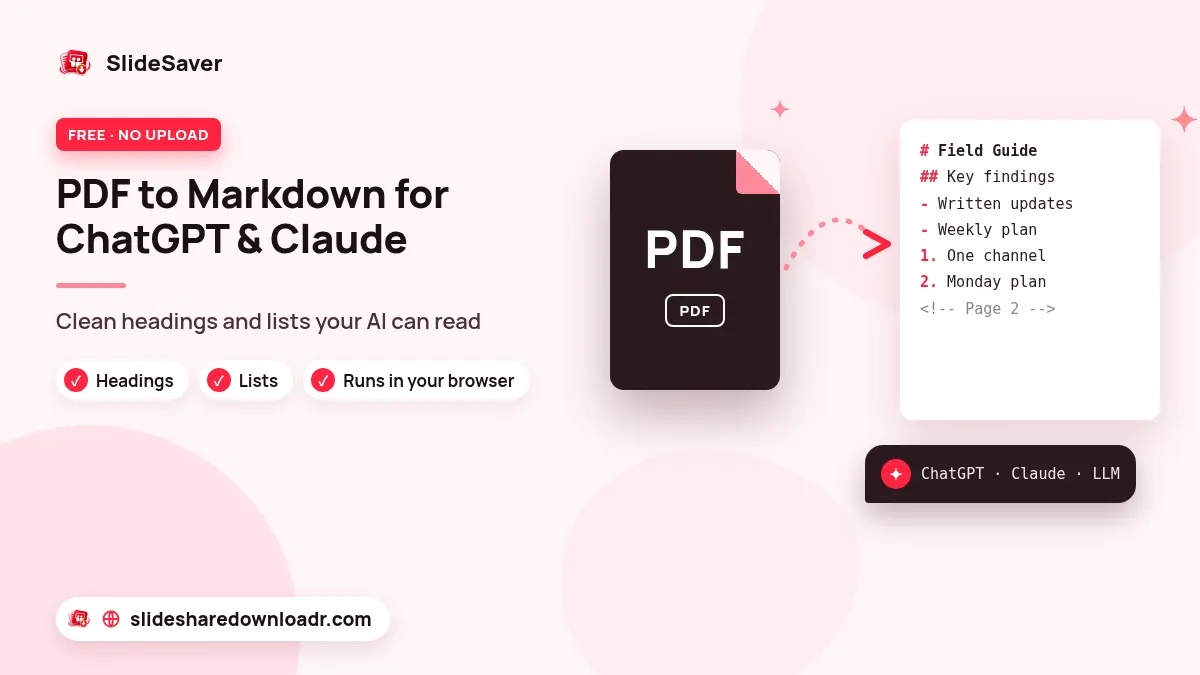
Open our free PDF to Markdown converter, add one PDF, leave the default options on and press Convert to Markdown. Check the result in the editable box, then press Copy Markdown or Download .md and paste it into your AI chat. The PDF is read in your browser, so it is not uploaded to our server.
If the tool warns that the PDF has almost no text, it is a scan or made of images. In that case, read how to make a scanned PDF searchable first.
Why Markdown works better for ChatGPT, Claude and other LLMs
A PDF stores text as small pieces placed on a page. When you copy from it or upload it to a chatbot, that layout often falls apart: headings look like normal sentences, lists turn into one long line, and page numbers or running headers land in the middle of paragraphs.
Markdown keeps the structure with a few plain symbols: # for headings, - for list items and an empty line between paragraphs. Language models have read a huge amount of Markdown, so they follow it well. You usually get tighter summaries, better answers about a specific section and fewer made-up quotes. Because it is plain text, you also see exactly what the model is reading, and you don't spend part of the context window on layout noise.
Step by step: PDF to Markdown in your browser
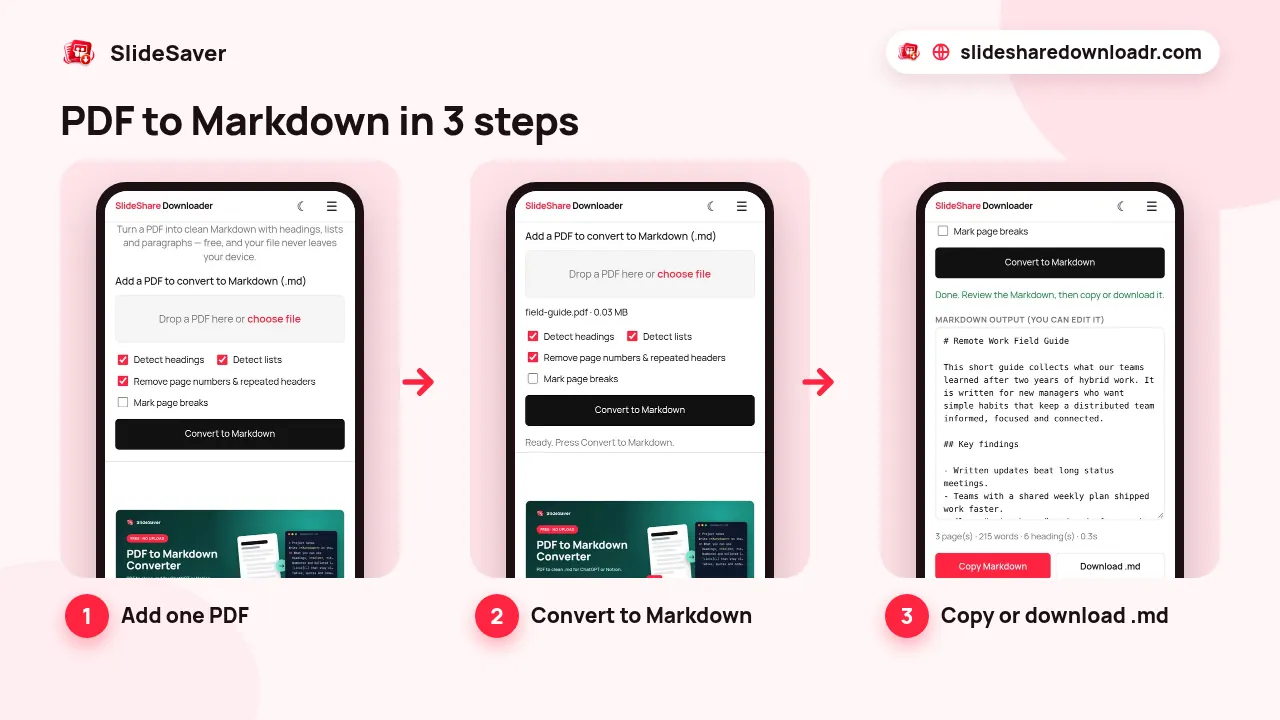
- Open the tool. Go to PDF to Markdown on a computer or phone.
- Add one PDF. Drop it on the box or tap choose file. The converter handles one PDF at a time, so repeat the steps for each file.
- Check the options. Detect headings, Detect lists and Remove page numbers & repeated headers are on by default. Turn on Mark page breaks if you want to ask about specific pages: it adds a
---line and a<!-- Page 7 -->note between pages. - Convert. Press Convert to Markdown. The text is read with Mozilla's pdf.js and rebuilt as Markdown. Most files take a second or two.
- Review, then copy or download. The output box is editable. Fix anything odd, then use Copy Markdown, Download .md or Download JSON.
What the converter keeps, and what it drops
It helps to know what to expect, so here is what the converter actually does:
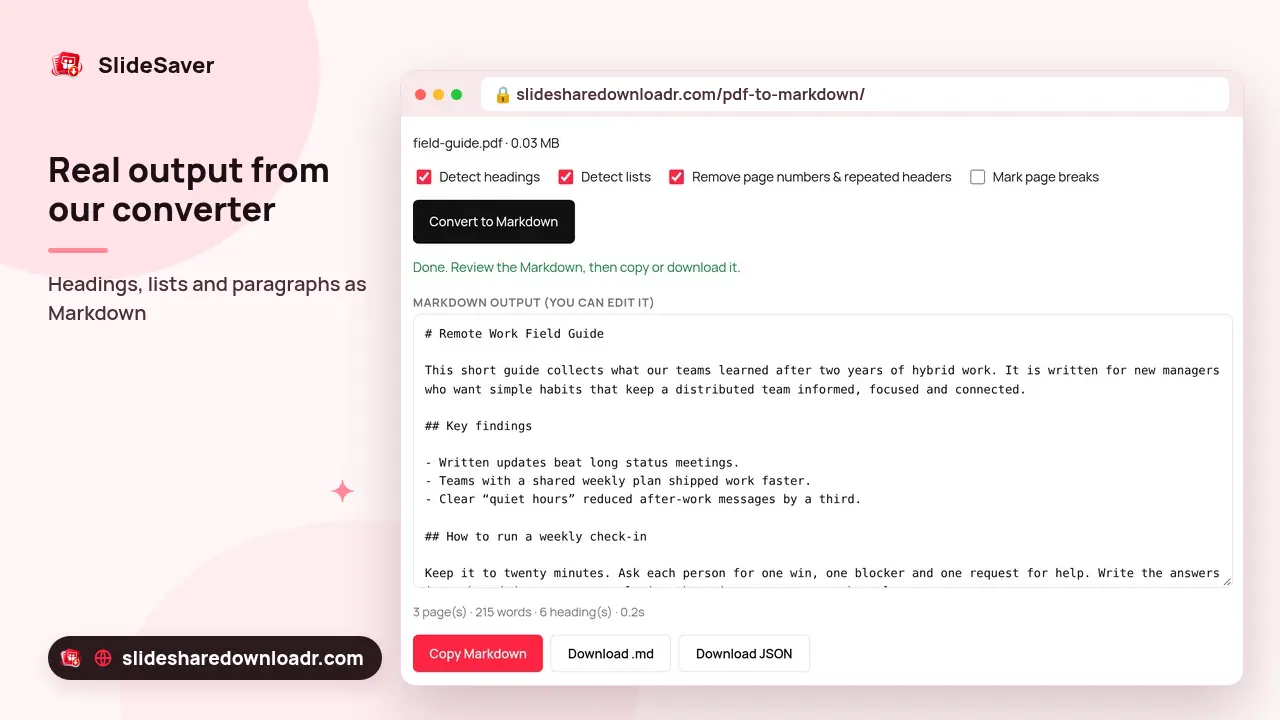
- Headings are detected from font size. Text that is clearly larger than the body text becomes
#to####. A bold line in normal size becomes bold text, not a heading, so add a##by hand if needed. - Lists with bullets or numbers (
1.,a)) become Markdown lists. - Paragraphs are joined back together, and words split with a hyphen at the end of a line are rejoined.
- Code set in a monospaced font becomes a fenced code block.
- Page numbers and running headers or footers that repeat across pages are removed.
- Tables become plain lines. Each row comes out as a line of text, not a Markdown table. If a table matters, rebuild it or describe it to the model.
- Images and charts are skipped, and links keep their text but not the web address.
Under the output you'll see the number of pages, words and headings found. Download JSON gives the same content page by page as headings, paragraphs and list items, which is handy for scripts.
Giving the Markdown to ChatGPT, Claude or another LLM
Paste the Markdown after a short instruction. Prompts that work well:
- "Summarise this document in 10 bullet points and keep the section headings."
- "Using only the text below, answer: … Quote the section you used."
- "Turn the Method section into a numbered checklist."
- "Make 15 question-and-answer flashcards from these notes."
For a long report or book, paste it in parts, for example one # chapter at a time, and ask for a summary of each part before a final overview. Every chat tool has its own limit on how much text it reads at once. With Mark page breaks on, you can also ask "what does page 12 say about pricing?"
Scanned PDFs, slide decks and SlideShare or Scribd files
Some PDFs contain only pictures of pages: scans, phone photos saved as PDF and many slide decks. They have no text layer, so any PDF to Markdown tool returns almost nothing. Ours warns you when a PDF has very little text and points you to OCR PDF. Run OCR, then copy the text or download the searchable PDF and convert that. Our guide on making a scanned PDF searchable explains the steps and the limits.
Decks you save with SlideShare to PDF are often image-based too, so they need OCR before conversion. If you start from a public presentation, our SlideShare to PDF downloader saves it first, and the Scribd Downloader works with public Scribd documents. Only use content you are allowed to use, and credit the author.
Privacy, and going back to PDF
The converter is a web page that runs on your device. Your PDF is read in the browser's memory and is not sent to our server; closing the tab clears it. Whatever you paste into an AI chat is covered by that service's own privacy policy, so think twice before sharing confidential documents.
Edited the Markdown or got a good answer from the AI? Paste it into Markdown to PDF to get a clean, shareable PDF again.
FAQ
Is the PDF to Markdown converter free?
Yes. There is no account and no watermark. The only limit is your device's memory.
Can I convert several PDFs at once?
No. It converts one PDF at a time. Repeat the steps for each file.
Why is my Markdown almost empty?
The PDF has no text layer because it is a scan or made of images. Run it through OCR PDF first.
Does it keep tables and images?
No. Images are skipped and tables become plain lines of text. Headings, lists, paragraphs and code blocks are kept.
Is my PDF uploaded?
No. The file is read in your browser with pdf.js and stays on your device.