OCR PDF – Scanned PDF to Text
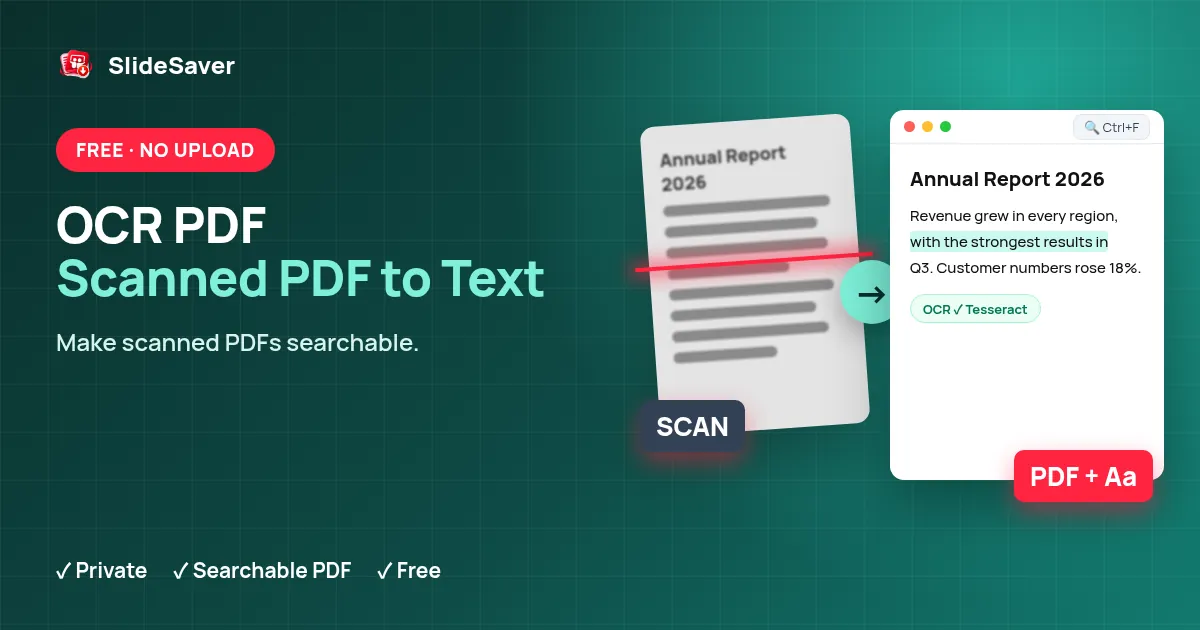
Recognise text in scanned PDFs and images, then copy it or save a searchable PDF — free, and your file never leaves your device.
Add a scanned PDF or images (JPG, PNG, WebP)
Searchable PDF output currently supports Latin-script languages only. The recognised text above is still available.
The OCR engine (Tesseract) and language data are downloaded to your browser from a public CDN the first time; your file itself is never uploaded.
How it works
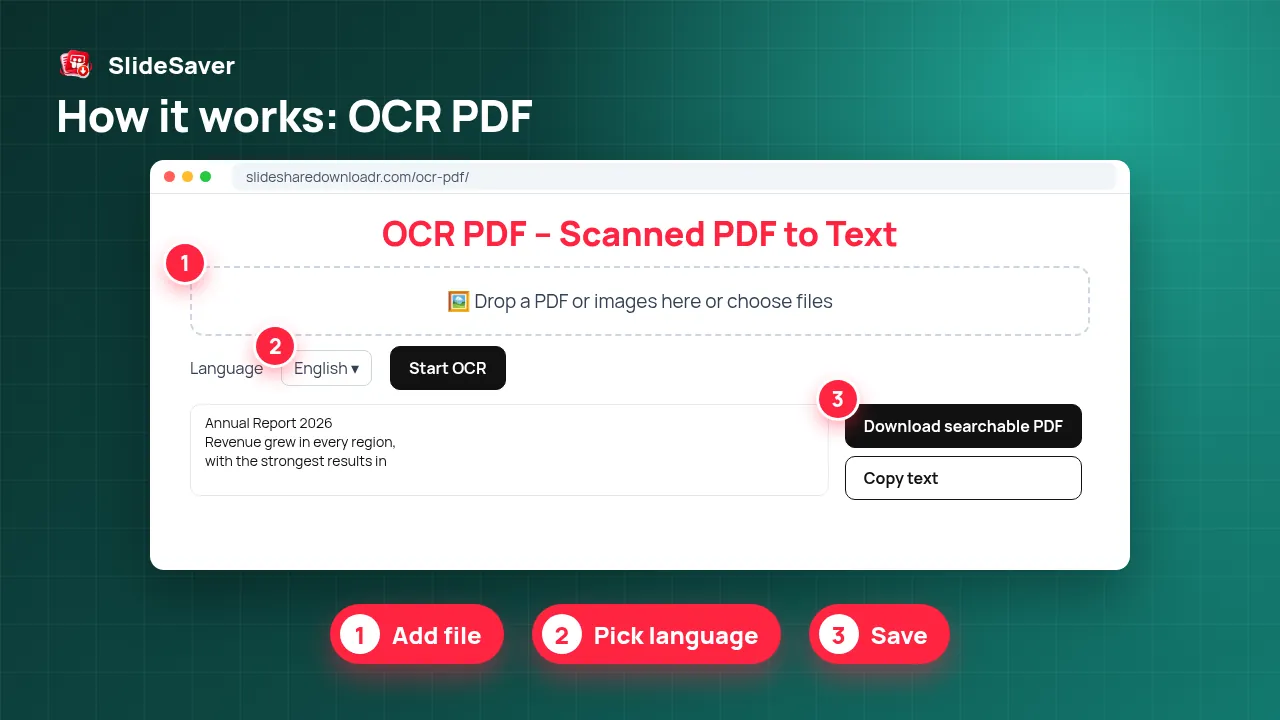
- Step 1
Add file
Drop a scanned PDF, or one or more images.
- Step 2
Pick language
Choose the document language; English is the default.
- Step 3
Run OCR
Pages are rendered and read on your device with Tesseract.
- Step 4
Save
Copy the text, download .txt or .md, or a searchable PDF.
Why use this tool
Private
OCR runs in your browser — the document is not uploaded.
Searchable PDF
Adds an invisible text layer so you can search and select text.
Free
No account, no watermark and no page quota.
Make a scanned PDF searchable — free, in your browser
A scanned PDF is really a stack of pictures: you can read it, but you can't search, select or copy the words. OCR (optical character recognition) looks at each page image and works out the text. This tool renders every page with pdf.js and reads it with Tesseract, the open-source OCR engine, running inside your browser via WebAssembly.
You get the recognised text to copy or download as .txt or Markdown, and — for Latin-script languages — a searchable PDF that keeps the original page images with an invisible text layer on top, so Ctrl+F and copy-paste work.
Great for image-only SlideShare and Scribd PDFs
PDFs built from slide images, such as exports from our SlideShare Downloader, contain no text at all. Run them through OCR to search them or to turn them into notes, then use PDF to Markdown on the searchable PDF or tidy the text and convert it with Markdown to PDF.
Honest expectations
OCR is never 100% accurate. Clear, high-contrast scans of printed text usually come out very well; handwriting, low-resolution photos, decorative fonts, tables and mixed languages produce more mistakes. Always proofread names, numbers and figures. Large documents take time because all the work happens on your device — use the page range box to test a few pages first.
FAQ
Is my PDF uploaded?
No. Pages are rendered and recognised in your browser. Only the OCR engine and language data are downloaded from a public CDN.
How accurate is the OCR?
Good on clean printed text, weaker on handwriting, blurry photos, small fonts and complex layouts. Always proofread the result.
Which languages are supported?
18 languages including English, Spanish, French, German, Portuguese, Indonesian, Filipino, Russian, Arabic, Hindi, Urdu, Chinese, Japanese and Korean. Searchable PDF output supports Latin-script languages.
How long does it take?
Usually a few seconds per page on a modern computer; slower on phones. The first run also downloads the engine and language data.
Does it work on SlideShare or Scribd PDFs made of images?
Yes. Image-only PDFs are exactly what OCR is for.
Is there a page limit?
No fixed limit, but very large files use a lot of memory. Use the page range box for big documents.