
How to Download SlideShare Presentations
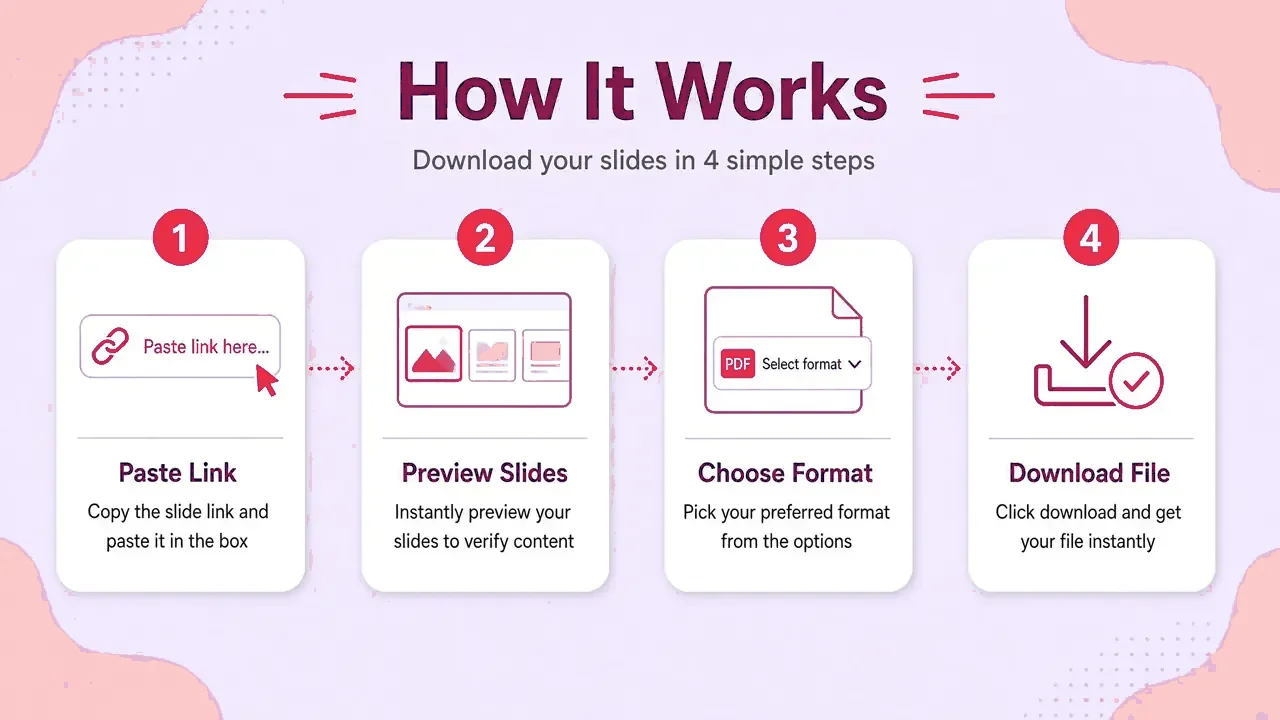




This guide covers every device. The short version: copy the deck link, paste it into SlideSaver, choose a format and save.
On a computer (Windows, macOS, Linux, ChromeOS)
- Copy the link. Open the presentation on SlideShare and copy the address from your browser bar or the Share button.
- Paste it here. Drop the link into the box above and press Get slides. We read the public page and load a preview of every slide.
- Pick slides and format. Keep all slides or choose a range, then pick PDF, PPTX, JPG (ZIP) or plain text. HD is selected by default.
- Save the file. Your browser builds the file and saves it under the presentation's own title. Nothing is uploaded or kept on our servers.
On Android
- In the SlideShare app or browser, tap Share › Copy link.
- Open SlideSaver in Chrome and tap Paste, then Get slides.
- Choose a format. The file appears in your Downloads notification.
On iPhone and iPad
- Tap the share icon on the deck and choose Copy.
- Open SlideSaver in Safari, paste, and tap Get slides.
- Pick a format and tap Download when Safari asks. Find it in Files › Downloads.
Choosing only some slides
Untick slides in the preview, or type a range such as 1-10, 14 in the range box and press Enter.
Which format?
See PDF vs PPTX vs JPG.
Troubleshooting
See the Help Center.