The quick version
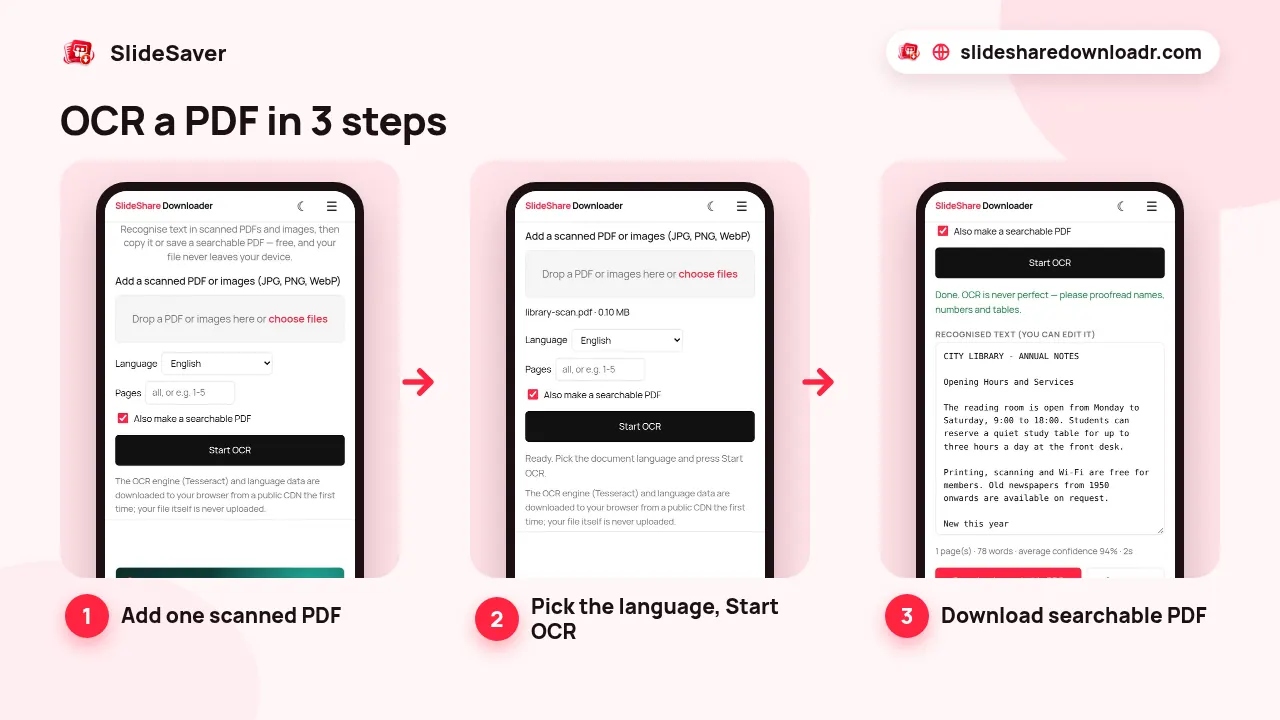
Open our free OCR PDF tool, add one scanned PDF (or several JPG, PNG or WebP images), choose the language of the document, keep Also make a searchable PDF ticked and press Start OCR. When it finishes, press Download searchable PDF, or copy the text or download it as .txt or .md. Recognition runs on your device. Only the OCR engine and language data are downloaded from a public CDN the first time; your file is not uploaded.
Does your PDF need OCR?
Open the PDF and try to select a word, or press Ctrl+F (Cmd+F on a Mac) and search for something you can see. If nothing is found, the pages are images and you need OCR. Typical examples are office scans, phone photos saved as PDF, old books, faxes and slide decks exported as pictures.
Our PDF to Markdown converter also warns you when a PDF has almost no text.
Step by step: how to OCR a PDF for free
- Add your file. The tool takes one PDF at a time. If you drop several PDFs, only the first is used. You can also add several images at once; they become pages in the order you selected them.
- Pick the language. 18 languages are available, including English, Spanish, French, German, Portuguese, Indonesian, Filipino, Russian, Arabic, Hindi, Urdu, Chinese, Japanese and Korean. The right language makes a big difference.
- Optional: choose pages. In Pages, type
1-5or1, 3, 8-to test part of a long PDF first. Leave it empty for all pages. - Start OCR. The first run downloads the open-source Tesseract engine and the language data, which your browser then keeps. Each page is rendered at high resolution and read on your device, with a progress message per page. Stop keeps the pages already finished.
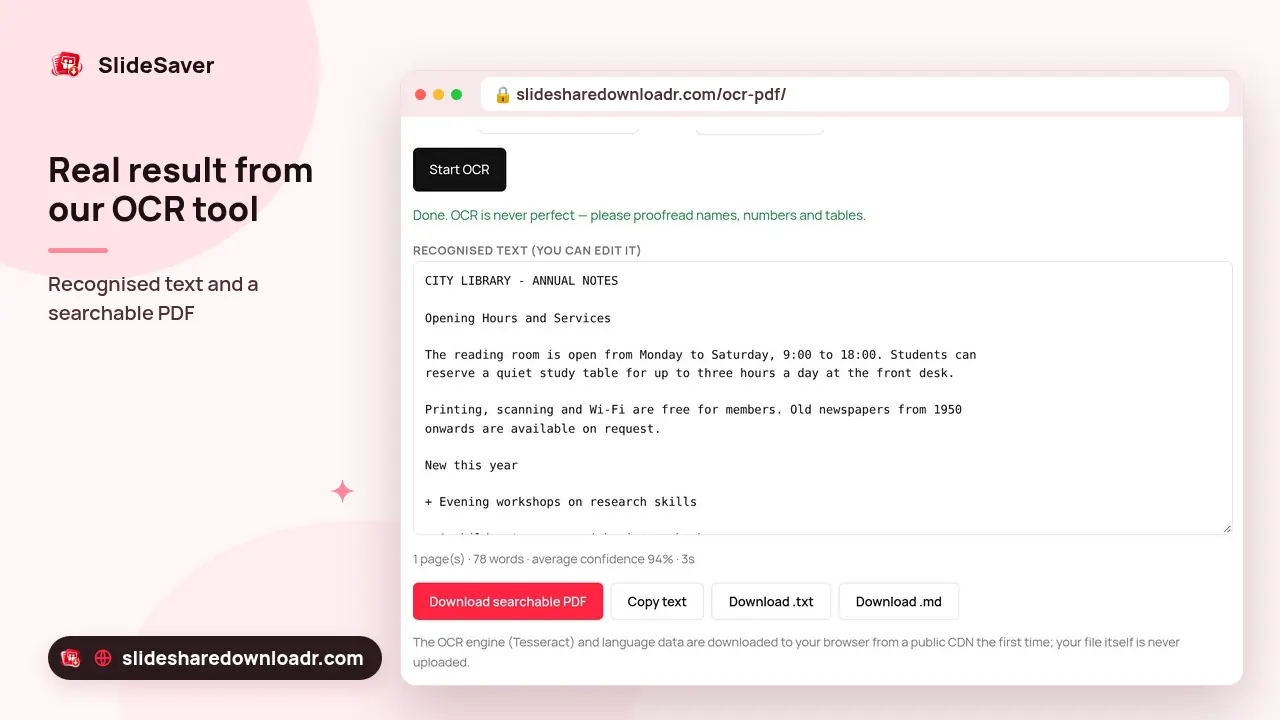
- Save the result. Download the searchable PDF, copy the text, or download .txt or .md.
What you get: searchable PDF and text
The searchable PDF shows each original page as an image with invisible text placed behind the words. It looks like the scan, but Ctrl+F, selecting and copying now work, and other apps can read it. To keep the file a sensible size, page images are saved as JPEG at about 1,700 pixels on the long side, so the result can look slightly softer than a very high-resolution scan.
- Latin-script languages only. The searchable PDF is made for English, Spanish, French, German, Portuguese, Italian, Indonesian, Dutch, Filipino, Turkish and Polish. For Russian, Arabic, Hindi, Urdu, Chinese, Japanese and Korean you still get the recognised text, but no searchable PDF.
- Special letters. The hidden layer stores Western European characters, so letters such as Polish ł or Turkish ş are left out of it. The text output keeps them.
- Text output. Pages are separated with a "Page" line. The .md download adds a heading for each page.
- Tables become plain lines. OCR reads tables row by row; columns are not rebuilt.
How accurate is free OCR?
On a clean, straight scan of printed text, Tesseract gets most words right. After each run the tool shows an average confidence score and warns you when it is low. Accuracy drops with:
- handwriting (the engine is built for printed text)
- blurry, tilted or low-resolution photos
- very small or decorative fonts
- complex tables, forms and multi-column layouts
- mixed languages, or the wrong language selected
Always check names, numbers and dates before you rely on them. No OCR tool is perfect, paid ones included.
Tips for better results
- Scan at 300 dpi in black and white or grayscale if you can.
- Photograph pages flat, in good light, with the camera parallel to the page.
- Crop dark edges and fingers before turning photos into a PDF.
- Choose the document's language, not the language of the site.
- Test a few pages first, then run the whole file. Large files take a while: expect a few seconds per page on a laptop and longer on a phone.
What to do next
Want to ask an AI about the scan? Convert the searchable PDF with PDF to Markdown; our guide on converting PDF to Markdown for ChatGPT shows how. To turn cleaned-up text into a neat handout, use Markdown to PDF.
Slide decks saved with SlideShare to PDF or from the Scribd Downloader are often image-only, so OCR makes them searchable too. If you need a public deck first, our free SlideShare presentation download page gets it in a few clicks. Only use content you are allowed to use, and credit the author.
FAQ
Is this OCR really free?
Yes. There is no account, watermark or page quota.
Can I OCR several PDFs at once?
No. The tool reads one PDF per run. You can, however, add several images at once.
Why can't I get a searchable PDF for my language?
Searchable PDF output supports Latin-script languages only. For Russian, Arabic, Hindi, Urdu, Chinese, Japanese and Korean you can still copy the text or download it as .txt or .md.
Is my scanned PDF uploaded?
No. OCR runs on your device. Only the engine and language data are downloaded the first time.
Can it read handwriting or keep tables?
It is built for printed text, so handwriting is unreliable. Tables come out as plain lines of text.